.svg)


Business Card Mode
When you activate the Business Card Mode feature on your Smart Card, it opens up an effortless way to share your business card information with others. With just a tap, you can swiftly share your contact details, enhancing networking opportunities and facilitating smoother professional interactions.
To set your card to this mode, please visit our web portal at: https://app.mobilocard.com/#/ or download the Smart Card App from the Apple Store or Google play store and follow the steps in this guide.
After tapping your card in Business Card mode, you'll see the following:
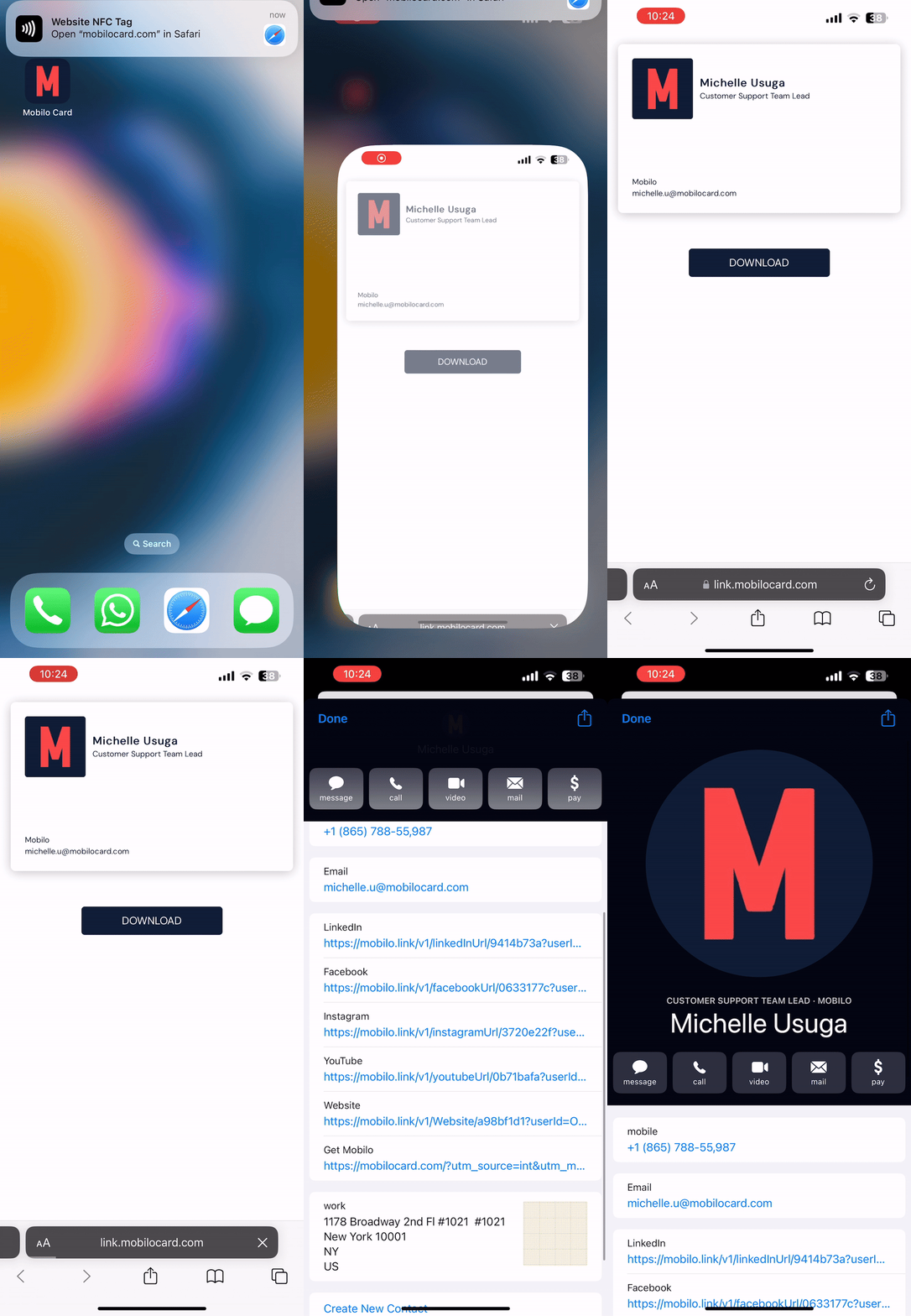
To learn how to add and edit the information shared by this mode, please refer to this article:
https://www.mobilocard.com/support-articles/update-profile-settings-2
Still need Help? Contact us at support@mobilocard.com
.svg)
.svg)
.svg)
